PiCOSM USER GUIDE

- Logging in
- Navigation
- Configuration
- Tags
- Contact Management
- Privacy & Security
- The Jenesis Timeline
- The Task Manager
- Help
- Use a web browser to visit PiCosm.com
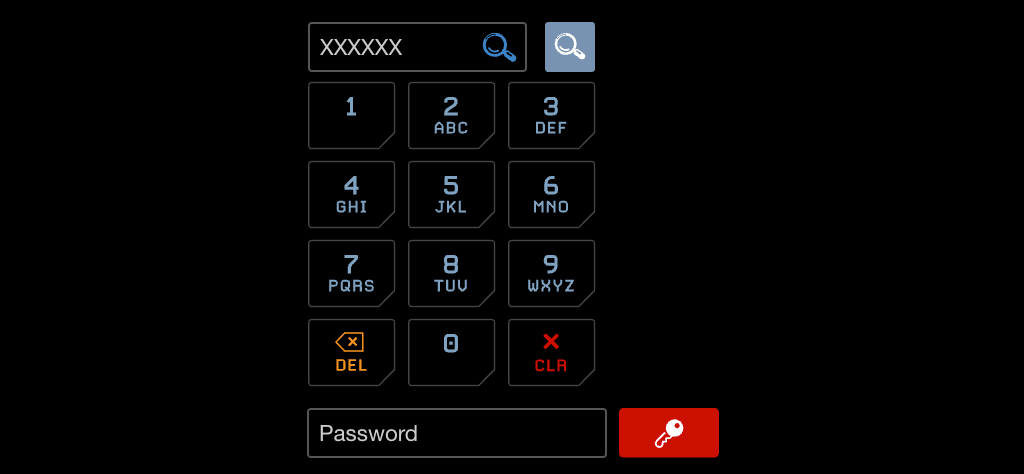
- An on screen keypad will appear
(The letters on the number buttons act as a guide if you chose a Pi number based on letters on a phone keypad when your account was created.) - Enter your Pi into the top field. (Shown with XXXXXX in the fig below.)
- Input your password into the lower field
- Click the red key icon or press [Return] on your keyboard

- The PiCosm logo - Clicking this will return you to whatever you specify happens when you login to PiCosm. Login actions are specified in VIEW > Account > Settings
- Pi ID - The number shown to the right of the PiCosm logo is the unique ID/login used to identify you or your location, such as a business, club etc. Your Pi is key to everything to do with the PiCosm platform and associated features. Display it everywhere, IE, Pi 12 34 78
- Logout control - The blue power symbol top right will log you out of your PiCosm account
- The Search field at top left is for:
- Inputing a Pi number to resolve it directly, such as to display your PiCard
- Entering keywords to locate information in your own account when you are logged in. Or..
- Locating information other PiCosm users have made public or chosen to share with you.
- The ADD drop down menu is for feeding information into your account, such as Like Log entries, HEYYU content, or even Products if you're a manufacturer.
- The VIEW menu is for browsing, managing or editing your account data.
- Depending on the content on the page, the FILTERS menu will sometimes appear and allow you to narrow down information, such as Like Log Music genres, PiCosm Task Manager Task statuses and so on.
- Select between 12 & 24 Hour mode.
- Choose where your Pi points to. By default, it will resolve to your PiCard electronic business card.
- Opt in for our (very) periodical newsletters. If you would rather learn about improvements to PiCosm in a less intrusive manner, follow @PiCosm4D on X.
- Select VIEW > Account > TAGS
- Type your first tag into the appropriate field.
- To mark the tag as a project, tick the checkbox to its right.
- Click the
 control.
 - Once done, click [SAVE] and continue as required.
- Notify your contact (say by phone, text chat or email)
- Select VIEW > Account > Contacts.
- Input the Pi of your contact into the [Enter Pi to Pair] field and click the orange
 Resolve Pi control.
 - Ensure your contact logs into their PiCosm account to accept your invitation from their PiCosm Contact Manager. Now do the reverse and ask your contact to pair your Pi.
control to create the specified field.
If you create a Location field group, where a physical address is input, enter the name of the location in the Description field, i.e., Home, Work, Studio.The red trash can control can be used to remove fields created in error or no longer required. Mandatory fields required for operation of your PiCosm account cannot be deleted.
If you have paired one or more contacts with your account, specify who sees what using the permissions menu below each field, as shown in the fig below.
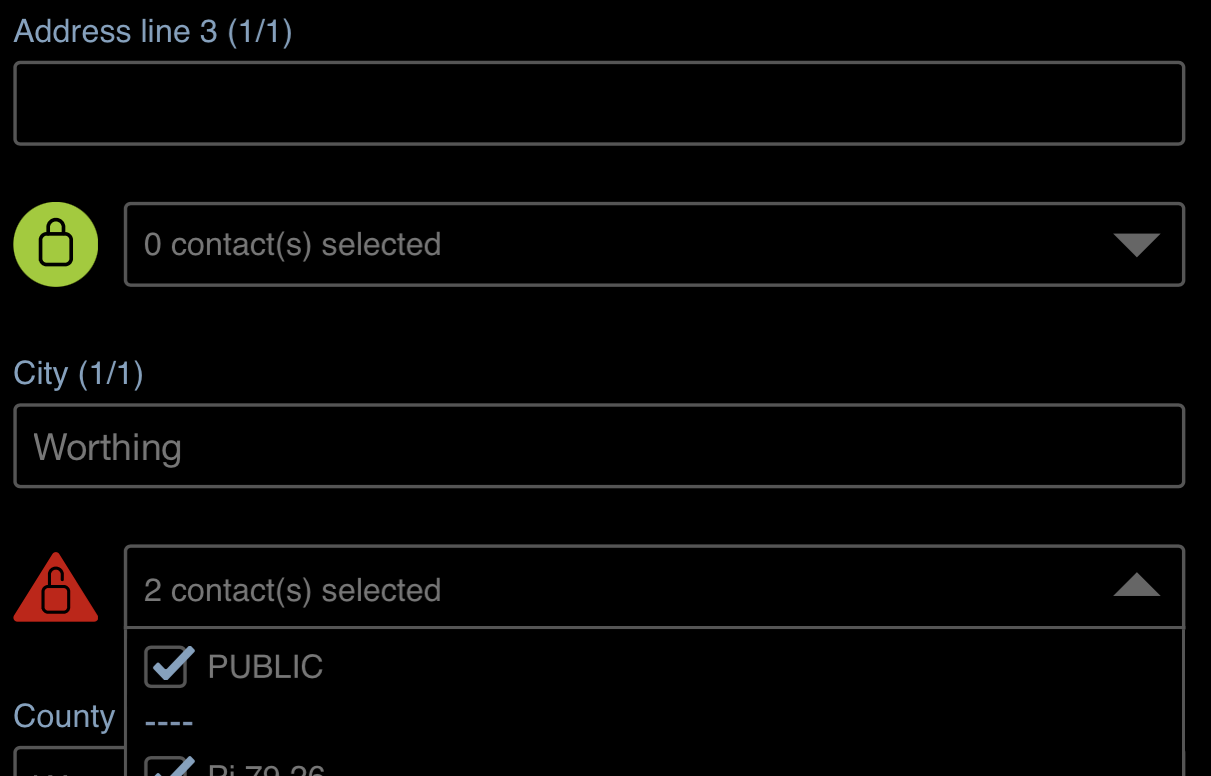
The permissions padlock icon will change shape and colo(u)r as follows:


For your peace of mind, to verify how much information is visible to the public on your PiCard:
- Logout of PiCosm.
- View your PiCard at picosm.com/x, where x is your Pi number.
YD-98-26-48
- Creating and managing tasks, including those assigned to others in your team
- Creating, managing and playing back HEYYU Digital Signage / Video Menu content
- Viewing the weather
- Showing the location of an event on the map above the timeline. For example, a meeting task linked to a destination, such as a hotel.
Fig 98-26-48
PiCosm ‘Jenesis’ Timeline showing some layers related to the HEYYU Digital Signage features
Jenesis operates in a similar manner to a desktop video editor such as Davinci Resolve, Premier Pro, Final Cut Pro, Vegas etc. Entries are represented by clips on the timeline that feature drag handles for setting the Start and (optional) End time for each entry.
Icons are shown within each clip to indicate its function:






Fig YD-98-26-48 / 1
Timeline clip icons
- Position the mouse pointer over a clip
- Click the clip once with mouse pointer
- Touch the clip on a touch screen device
- Double or right click the clip to display the full clip properties panel
YD-34-66-28
- Double clicking or right clicking in the Timeline about where you would like the task to be actioned. If you double click or right click on or near the PlayHead, the task start date and time will be based on the date and time at that moment.
- Clicking the [+] control in the MustDash header.
- Create spreadsheet row as Fig X
- Copy contents of row to clipboard (Ctrl +C)
- Switch to the Jenesis Timeline
YD-44-42-72
To provide an at a glance view of any combination of tasks, from those you have assigned yourself, to those assigned to you by others, tasks assigned by you to others and so on, select VIEW > Tasks (T/U) > List / TableThe numbers in parenthasis after the word Tasks indicates the total number of tasks in or associated with your account (T) and the number that are assigned to or associated with you (U)
Use the FILTERS drop down menu to choose which tasks to view. Once finished using the filter checkboxes, click the [Apply] control to refresh the table.
For an at a glance view of tasks assigned to you or due by others, use the My Tasks and Their Tasks short cuts at the top of the MustDash header.If a map that appears next to one or more of your physical addresses is not showing your true location, you can manually adjust this as follows:
- Login to your account
- Select VIEW > Account > Profile
- Below the Location fields, ensure the Update map on save checkbox is on.
- Click the small [Save] control. If not already visible, a mini map will appear.
- Drag the cross hairs and map until the cross hairs are positioned over your location. If necessary, zoom in [+] or out [-] and/or switch to Satellite view.
- Click [Save]
If your contact(s) have yet to give you permission to view their name (First, Middle and/or Last), then it will not appear before their Pi on the Contact Manager or Profile Permissions. For example, Pi 12 34 5. Once Permissions are set, you will see, (for example) Joe Smith (Pi 12 34 5).
Need more technical support?Contact us at hi AT picosm DOT com. A real human will reply.
- HEYYU User Guide
